
SMPTESwitch
Put the show on real buttons. The SMPTESwitch module for Companion gives your Stream Deck two ready-made pages, and every key lights up to match what the app is doing.
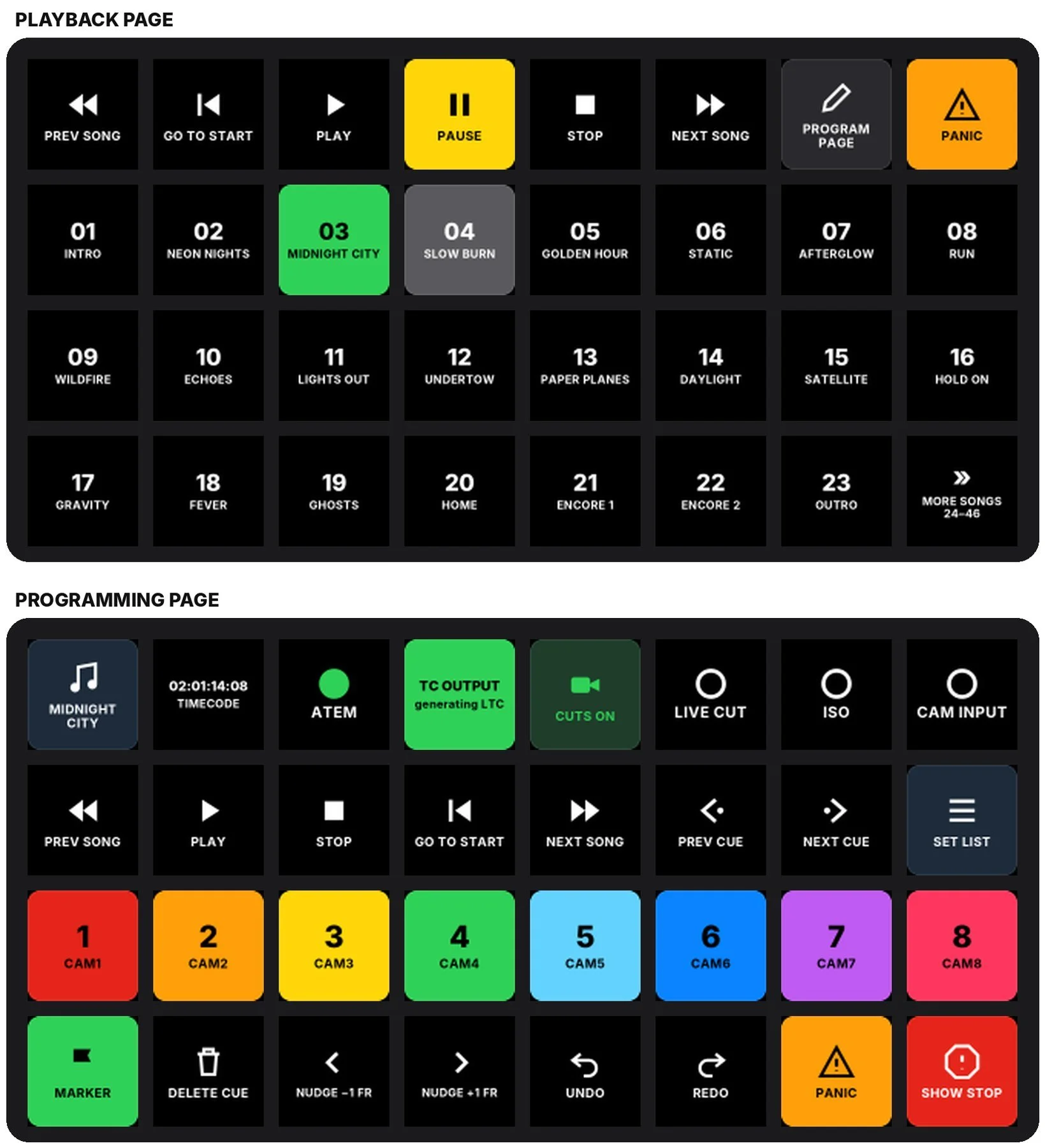
Two pages, ready to drag in
Laid out for a 32-key Stream Deck XL. Drag them in from Companion's presets and you're running.
Run the show
Prev song, Go to start, Play, Pause, Stop, Next song and Panic across the top. Below, one key per song in set-list order: the playing song is green, the next one grey, and a More songs key pages through long sets.
Build the show
Status and record keys, playback and cue keys, Mark camera 1–8 in the app's camera colours, editing keys, Show Stop and Panic.
Keys that know what's happening
Keys don't remember what you pressed. They ask SMPTESwitch several times a second and light to match, wherever you triggered it from: the app, the keyboard, incoming timecode or the deck.
- TC key: green for TC OUTPUT, yellow-orange for TC INPUT. Press to switch.
- Record keys: LIVE CUT, ISO and CAM INPUT go dark red when armed and bright red with the time while recording.
- Show Stop: one press stops the show, the key flashes red and white, a second press clears it.
- Variables such as timecode, next camera and countdown for your own buttons.
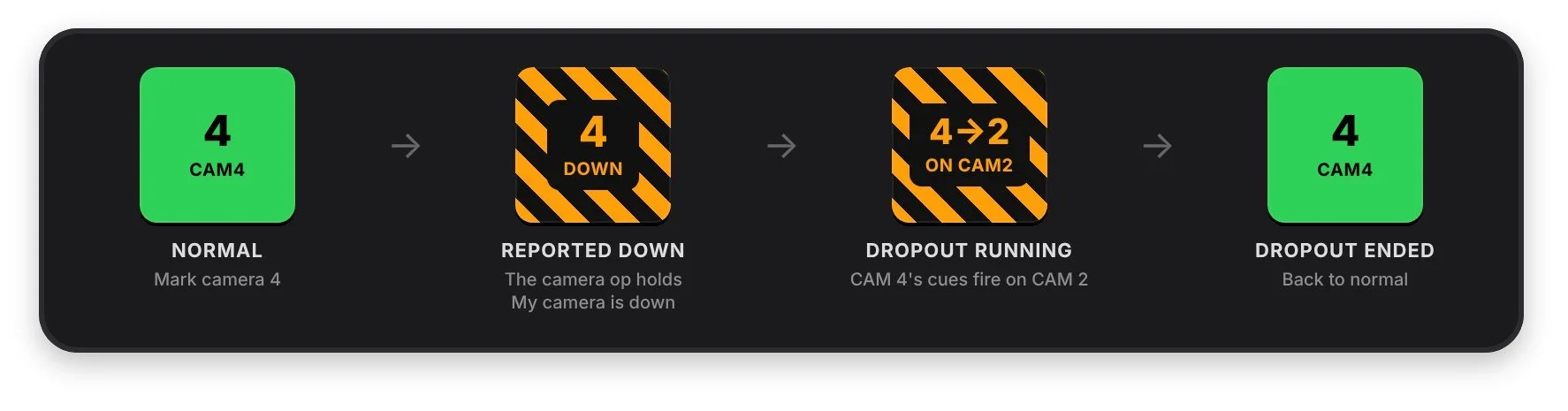
A camera key through a dropout: reported down, cues running on CAM 2, then back to normal.
Download
Free for SMPTESwitch users. Don't unzip or open the file: Companion reads the .tgz exactly as it is.
DECK
What you need
- SMPTESwitch open on your Mac, with remote control turned on in its Remote tab (HTTP port 9101).
- Bitfocus Companion 4 or later, on the same Mac or another computer on the same network. Tested on Companion 5.1.
- A Stream Deck connected to Companion. The ready-made pages are laid out for a 32-key Stream Deck XL.
Install in four steps
About five minutes, start to finish.
Download the module
Download the module's .tgz file from above and save it somewhere easy to find, like your Downloads folder.
Import it into Companion
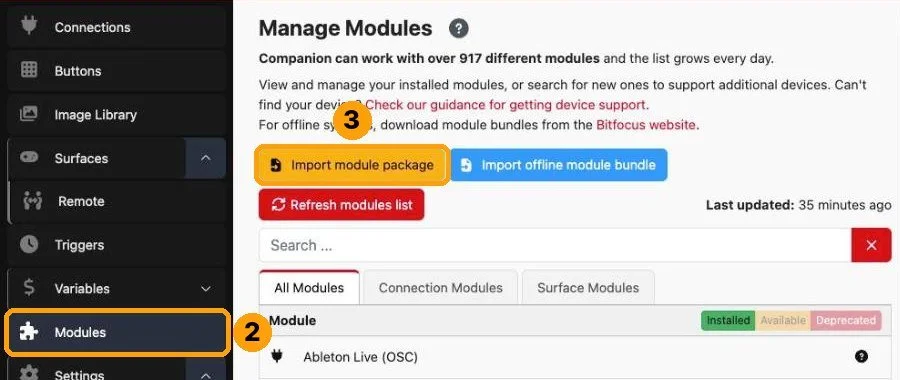
- Open Companion's admin page in your browser (usually
http://127.0.0.1:8000). - Click Modules in the left-hand menu.
- Click Import module package and choose the .tgz file you downloaded.
- HAZE Productions: SMPTESwitch now appears in the list of installed modules.
Add the SMPTESwitch connection
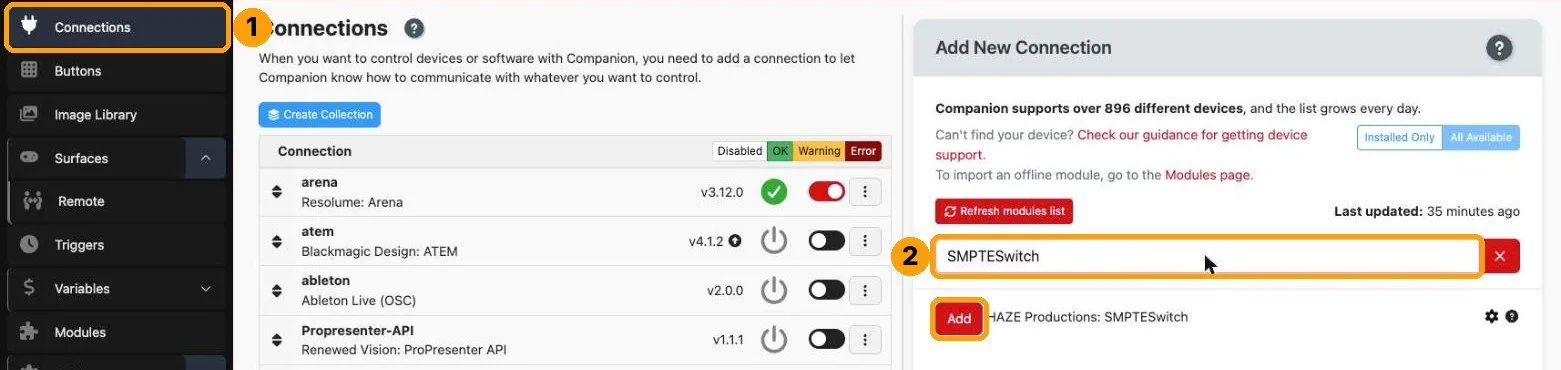
- Click Connections in the left-hand menu.
- In Add New Connection, search for SMPTESwitch and click Add.
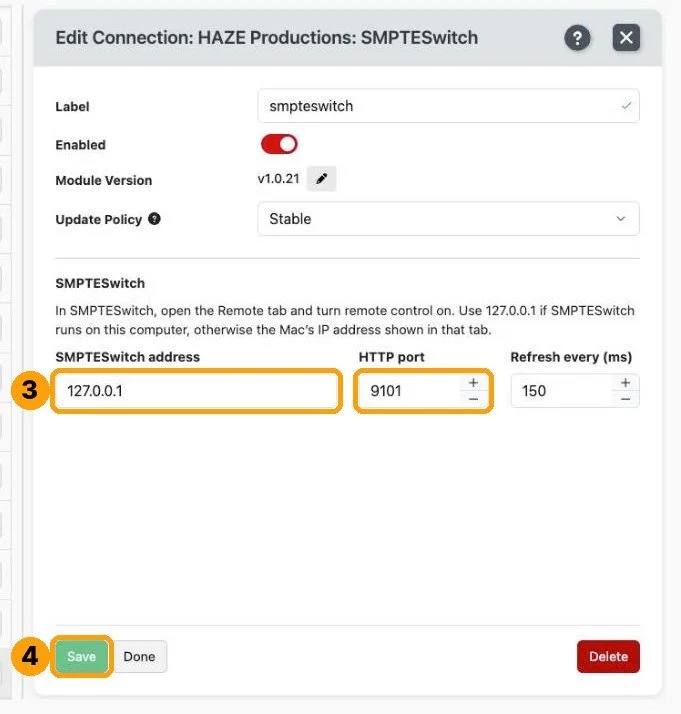
- Enter the IP address of the Mac running SMPTESwitch. If Companion runs on the same Mac, use
127.0.0.1. Leave the HTTP port at9101. - Click Save. The connection turns green with a tick once it can reach SMPTESwitch.
Drag in the keys
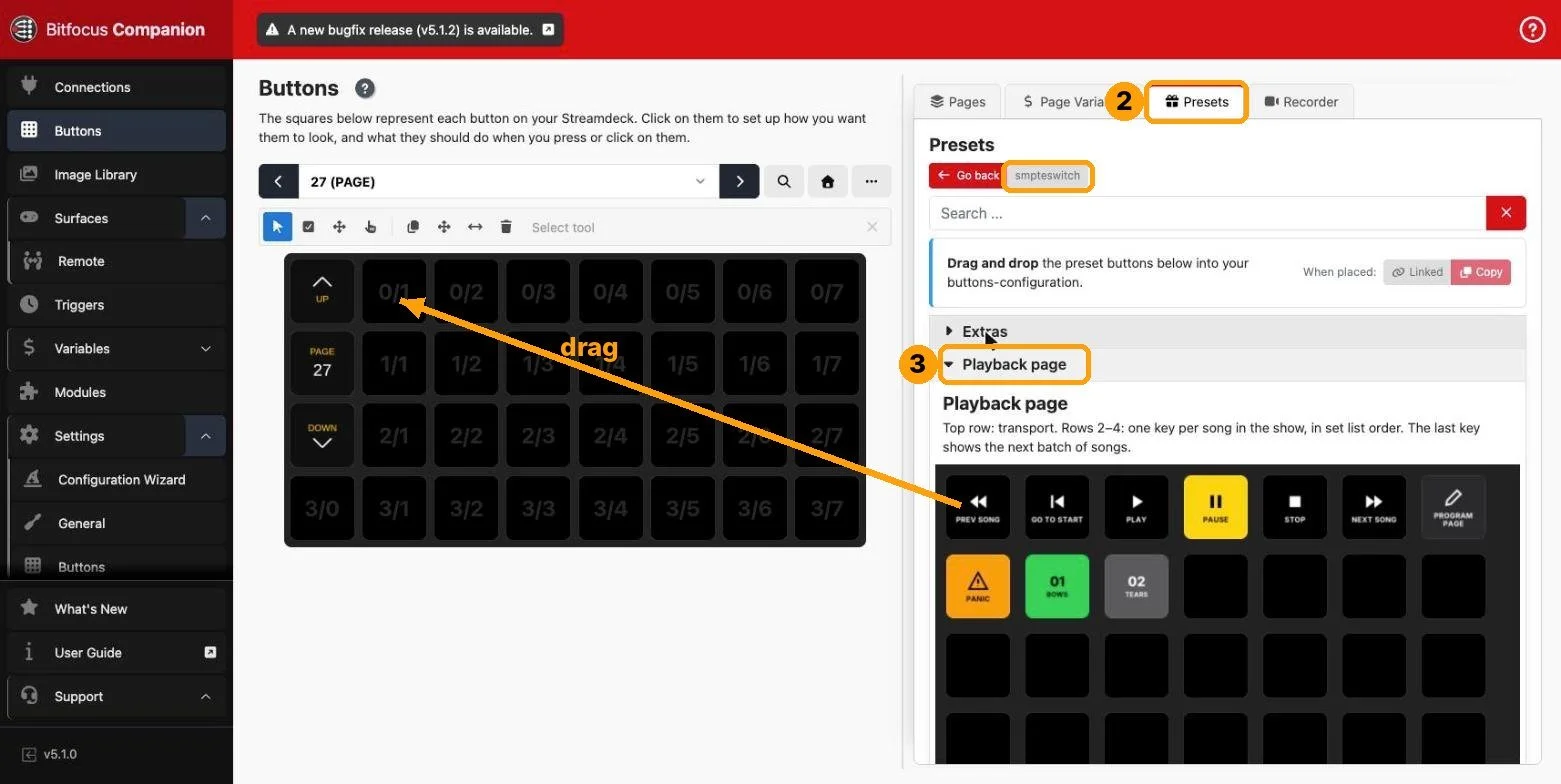
- Click Buttons and go to an empty page.
- Open the Presets tab and click smpteswitch.
- Open Playback page and drag each key onto the matching spot. Do the same with Programming page on a second page.
- Extras has spare keys (Show Stop, Up Next, countdown, cameras 9 and 10) for any empty spots.
Updating to a newer version
- Download the new .tgz and import it in Modules › Import module package, as in step 2.
- Go to Connections, open your SMPTESwitch connection, click the pencil next to Module Version and pick the new one. Companion keeps using the old version until you switch it.
- Keys you've already placed update by themselves. Only re-drag a key if the release notes say to.
Troubleshooting
| WHAT YOU SEE | WHAT TO DO |
|---|---|
| Connection stays red or yellow | Check SMPTESwitch is open, remote control is on in its Remote tab, and the IP address is right. |
| Grey 3D keys or extra text | They're from an older version. Delete them and drag them in again from Presets. |
| Nothing changed after updating | The connection is still on the old version. Change it in Connections (see Updating). |
| ATEM key shows OFFLINE | SMPTESwitch can't reach the ATEM. Check the ATEM's IP address in SMPTESwitch. |
There are no manual ATEM buttons in this module, since Companion's own ATEM module already covers that. OSC (UDP 9100) and plain HTTP commands still work for other controllers.
Still stuck? Email support@hazeproductions.com.au with a screenshot of your Companion buttons page.